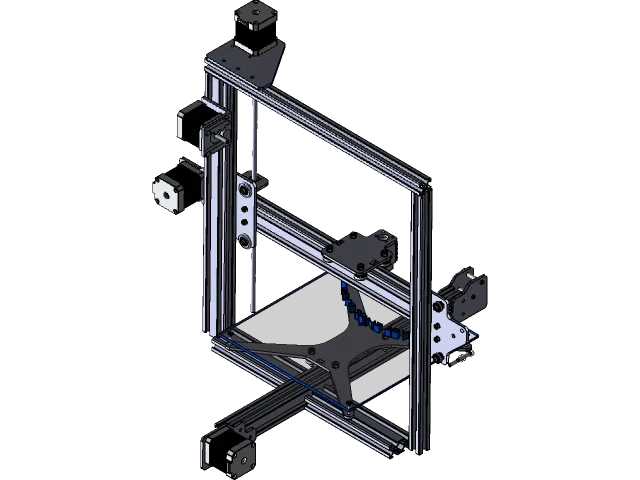
Understanding Tevo Tarantula Firmware Download
The Tevo Tarantula, a popular 3D printer, relies on firmware to operate effectively. Firmware is essentially the software that controls the printer’s hardware, dictating its movements, temperature control, and overall functionality. Downloading and updating the firmware is a crucial process for maintaining and improving your 3D printing experience. This guide provides a comprehensive overview of how to safely download and install firmware for your Tevo Tarantula, ensuring optimal performance and longevity of your printer. A proper understanding of the firmware and the update process can prevent common issues and enhance the capabilities of your printer, allowing you to create more complex and high-quality prints. This also ensures that you can take advantage of any new features or bug fixes released by the manufacturer or community.
Why Firmware Updates are Important
Firmware updates are more than just an optional upgrade; they are essential for the optimal functioning of your Tevo Tarantula. These updates often include critical bug fixes, performance improvements, and new feature enhancements. Bug fixes address software glitches that can lead to printing errors, hardware malfunctions, and overall instability. Performance improvements can enhance print speeds, accuracy, and the quality of your prints. New features, such as support for new materials or advanced printing techniques, expand the capabilities of your printer, allowing you to experiment with different projects. Regular firmware updates also provide enhanced security, reducing the risk of vulnerabilities. Ignoring firmware updates can lead to degraded performance, compatibility issues, and even the inability to print certain models. Therefore, keeping your firmware current is key to ensuring a smooth and successful 3D printing experience.
Risks of Incorrect Firmware

While firmware updates offer many benefits, incorrect installation carries significant risks. Installing the wrong firmware version can render your printer inoperable, causing communication errors or hardware incompatibilities. This can lead to a ‘bricked’ printer, where the device is effectively unusable until the correct firmware is flashed. Furthermore, using corrupted firmware can cause hardware damage, such as overheating of the hot end or malfunctioning of the motors. Incorrect firmware can also lead to unreliable print quality, with issues such as layer shifting, poor adhesion, and inaccurate dimensions. Therefore, it’s crucial to follow the correct steps during the download and installation process. Always verify the firmware version and source to avoid these potentially costly and frustrating issues. Double-checking the firmware compatibility with your specific Tevo Tarantula model and hardware is also essential to mitigate these risks.
Preparing for the Tevo Tarantula Firmware Download
Before initiating a Tevo Tarantula firmware download, thorough preparation is essential for a smooth and successful update process. This includes backing up your existing settings, ensuring that you have the correct hardware, and identifying the right firmware version for your printer model. A stable power supply is also critical; consider using an uninterruptible power supply (UPS) to prevent interruptions during the flashing process. Make sure you have the necessary tools, such as a USB cable to connect the printer to your computer. Adequate preparation minimizes the risk of errors during the update and safeguards your printer from potential issues. Taking these preliminary steps will significantly increase your chances of a successful firmware installation and a fully functional 3D printer.
Backing Up Your Current Settings
Backing up your printer’s current settings is a crucial step before any firmware update. This ensures that if anything goes wrong during the installation process, you can revert to your original configurations. These settings include crucial parameters like steps per millimeter, PID settings for the hot end and bed, and other calibration values specific to your printer. Many 3D printing software packages allow you to save these settings to a file. Create a backup and store it securely on your computer or an external drive. After the firmware update, if any issues arise, you can restore these settings to regain your preferred configurations and avoid having to manually reconfigure them. This precautionary measure can save considerable time and effort if any problems occur during or after the firmware installation.
Checking Your Printer’s Hardware

Before you begin the firmware download, a physical inspection of your Tevo Tarantula is essential. Ensure all connections are secure and that there are no loose wires or damaged components. Check the condition of your hot end, heated bed, and the motors. Make sure all moving parts operate smoothly and are free from obstruction. Verify the printer’s power supply is functioning correctly and providing the necessary voltage. Confirm that the USB port on your printer is working. It’s also helpful to identify the specific version of your printer, as different revisions might require different firmware. Performing this hardware check can help avoid potential issues during the firmware installation and help you identify any underlying problems that might cause the update to fail. If any hardware issues are detected, addressing them before the update is highly recommended to avoid complications.
Downloading the Correct Tevo Tarantula Firmware
Downloading the correct firmware is a pivotal step. Selecting the wrong firmware can lead to serious problems, potentially damaging your printer or causing it to malfunction. Always obtain firmware from trusted sources, such as the official Tevo website or reputable 3D printing communities and forums. Be cautious of unofficial sources, as they may contain corrupted or malicious files. Once you’ve found a reliable source, carefully review the firmware description and version number to ensure it matches your printer model and hardware configuration. Pay close attention to any specific instructions or requirements provided by the manufacturer. Always back up your existing settings before downloading and installing new firmware. Downloading the correct firmware is the first and most critical step in a successful update process.
Finding the Right Firmware Version
Identifying the appropriate firmware version for your Tevo Tarantula involves several steps. First, determine the exact model of your printer, as different versions may have distinct hardware configurations. Consult your printer’s documentation or the manufacturer’s website to find this information. Next, check the firmware version currently installed on your printer. This information is usually accessible through the printer’s control panel or the connected software interface. Once you have the model and current version, compare this to the available firmware versions on the download site. Choose the version that is designed for your specific printer model and offers the latest features and bug fixes. If there are multiple options, read the release notes and any user reviews to determine the most stable and suitable version for your needs. Always prioritize firmware that is compatible with your specific printer’s hardware and software.
Where to Download Firmware Safely

Downloading firmware from secure and trusted sources is paramount to protect your printer from potential risks. The official Tevo website is generally the most reliable source for firmware updates, providing verified and tested files for your specific printer models. Other reputable sources include well-known 3D printing forums, community websites, and GitHub repositories maintained by experienced users and developers. When downloading from these sources, always verify the file’s integrity. Check for checksums or digital signatures to ensure that the file hasn’t been tampered with. Avoid downloading firmware from unfamiliar or untrusted websites, as these may contain malicious software or corrupted files that could harm your printer. Prioritize sources that offer documentation, support, and community feedback to minimize the risk of encountering issues during the installation process. Double-check the website’s security certificates and ensure that the download connection is secure (HTTPS).
Step-by-Step Tevo Tarantula Firmware Installation
The installation process requires careful adherence to a specific series of steps. Failing to follow these steps correctly can result in errors or damage to the printer. Before you begin, ensure you’ve downloaded the correct firmware file and have all the necessary tools and software, including a USB cable and a suitable flashing utility. The specific procedure varies depending on the firmware and your printer’s control board, but it generally involves connecting your printer to your computer via USB, selecting the correct COM port in the flashing software, and uploading the firmware file. After uploading the firmware, your printer will typically reboot. After reboot, verify the installation by checking the printer’s control panel or software interface. Finally, recalibrate your printer and restore any settings from your backup. Following these steps correctly will ensure a smooth and successful firmware update.
Connecting to Your Printer
Connecting your Tevo Tarantula to your computer is the first step in the firmware flashing process. Use a standard USB cable to connect the printer’s USB port to a USB port on your computer. Ensure the connection is secure at both ends. Once connected, your computer should recognize the printer as a device. You may need to install the appropriate drivers for your printer if they aren’t already installed. These drivers are available from the printer manufacturer’s website. Once the printer is recognized, you will be able to select the correct COM port within the flashing software. The COM port number is typically displayed in your computer’s device manager under the ‘Ports (COM & LPT)’ section. Correctly establishing this connection is essential, as it enables communication between your computer and the printer’s control board, allowing you to upload the new firmware.
Flashing the Firmware

Flashing the firmware involves uploading the downloaded firmware file to your Tevo Tarantula’s control board. This process uses a flashing utility, such as Arduino IDE or another software specifically designed for 3D printer firmware updates. Open the flashing utility and select the correct COM port corresponding to your connected printer. Then, select the firmware file you downloaded earlier. Carefully check the settings within the flashing utility to ensure that they match your printer’s configuration. With all the settings verified, initiate the flashing process. The utility will upload the firmware to your printer. During this process, avoid disconnecting the USB cable or interrupting the power supply. The flashing utility will display a progress indicator, showing the status of the upload. Upon completion, the utility should confirm a successful flash. If any errors occur, troubleshoot them based on the error messages provided by the utility.
Verifying the Firmware Installation
After the firmware has been flashed to your Tevo Tarantula, verifying the successful installation is crucial. Upon completion of the flashing process, your printer will usually reboot automatically. Once the printer restarts, access the printer’s control panel or the connected software interface, and navigate to the ‘About’ section or a similar setting. Verify that the firmware version displayed matches the one you intended to install. You can also test basic functions such as homing the axes, heating the hot end and bed, and moving the print head to ensure that the printer is responding correctly. If you encounter any errors or unusual behavior during these tests, there may be an issue with the installation. Double-check all settings, repeat the flashing process if necessary, or consult the firmware documentation and support forums for guidance. Successfully verifying the firmware ensures that your printer is running the latest version and operating correctly.
Troubleshooting Common Firmware Issues
Even when following the correct procedures, you may encounter issues. Understanding these problems and how to resolve them is important. Common issues include communication errors, print failures, and hardware malfunctions. Always start by verifying your printer’s settings and connections. Ensure that the USB cable is secure, the COM port is correctly selected, and that the correct firmware has been flashed. Consult online resources such as 3D printing forums, manufacturer support pages, and community groups for solutions. If you are unable to resolve an issue yourself, reach out to experienced users or technical support professionals for assistance. Troubleshooting can often involve reverting to the previous firmware version. By understanding these common problems and the steps needed to fix them, you can minimize downtime and continue to enjoy a successful 3D printing experience.
Printer Not Responding After Update

If your Tevo Tarantula fails to respond after a firmware update, several steps can be taken to troubleshoot the issue. First, disconnect and reconnect the printer’s USB cable to ensure a stable connection. Then, check the power supply and ensure that the printer is receiving adequate power. Verify the firmware flashing process by restarting the flashing utility and re-flashing the firmware. If the printer still does not respond, there might be an issue with the firmware itself, or the flashing process may have failed. In these cases, you may need to restore the original firmware from a backup. If you do not have a backup, search for the original firmware from a trusted source and attempt to flash it again. Consider the possibility of hardware issues and check the printer’s control board for any visible damage or loose connections. Seeking help from the manufacturer or online forums can provide further assistance, especially if you are not familiar with firmware troubleshooting.
Calibration Problems
After updating the firmware, calibration issues can arise, affecting the quality and accuracy of your 3D prints. These issues include problems with the bed leveling, extrusion, and dimensional accuracy. Begin by leveling the print bed using your printer’s manual leveling procedure or automatic bed leveling system if available. Then, calibrate the extruder by adjusting the steps/mm settings, ensuring that the extruder is feeding the correct amount of filament. Fine-tune your printer’s PID settings to accurately control the temperature of the hot end and heated bed. Moreover, check the belt tension on the X and Y axes, ensuring that the belts are neither too loose nor too tight. Run test prints to identify and address any remaining calibration problems. Consult online guides and tutorials, as well as the printer’s documentation, for specific calibration instructions and troubleshooting tips. Properly calibrating your Tevo Tarantula will ensure high-quality prints and optimal performance after a firmware update.
Advanced Firmware Customization
Once you have a good grasp of the basic firmware update and troubleshooting, exploring advanced firmware customization is an option. Advanced customization allows you to fine-tune your printer’s performance and add new features. This involves modifying the firmware source code to make changes to the printer’s behavior and capabilities. Common customizations include adjusting print speeds, acceleration, and jerk settings to optimize print quality and speed. Adding support for new hardware components, such as different types of sensors or a second extruder, can also be achieved through firmware modifications. However, this level of customization requires a deeper understanding of the firmware’s code structure, as well as a willingness to experiment and troubleshoot. Familiarize yourself with the available firmware modifications, such as those provided by Marlin or RepRapFirmware. Always back up your original firmware before making changes and be prepared to troubleshoot any issues that arise. Exploring advanced customization can greatly enhance the capabilities of your Tevo Tarantula, allowing you to tailor it to your specific printing needs.
Configuring Firmware Settings

Configuring firmware settings involves adjusting various parameters within the printer’s control software to optimize performance. After flashing new firmware or making any changes, you’ll need to revisit and configure the settings. This usually entails accessing the printer’s settings menu through its control panel or your connected software. Parameters such as the steps per millimeter (steps/mm) for each axis, the PID settings for the hot end and heated bed, and the acceleration and jerk settings all contribute to print quality. Ensure your firmware is properly configured for your hardware. Correctly setting the endstop configuration and selecting your print bed size are crucial for the printer to perform accurately. Consult the firmware’s documentation and online resources for the recommended settings for your specific printer and hardware configuration. Proper configuration ensures optimal print quality, reduces the risk of printing errors, and allows you to fully utilize the features of your Tevo Tarantula.
Firmware Updates for Enhanced Performance
Regular firmware updates play a crucial role in enhancing the performance of your Tevo Tarantula over time. These updates often incorporate critical bug fixes, performance enhancements, and new feature implementations that improve the overall 3D printing experience. Newer firmware versions often incorporate improvements to print quality, reducing artifacts and providing more accurate prints. Additionally, updates may introduce new features such as support for different filament types, advanced printing modes, or user interface improvements. Firmware updates also contribute to stability and security, resolving potential vulnerabilities and enhancing the reliability of your printer. By keeping your firmware up to date, you not only address known issues but also ensure you have access to the latest improvements and innovations in the field of 3D printing. This continuous process of updates helps to optimize performance, enhance functionality, and prolong the lifespan of your Tevo Tarantula, allowing you to create better prints and experiment with new possibilities.