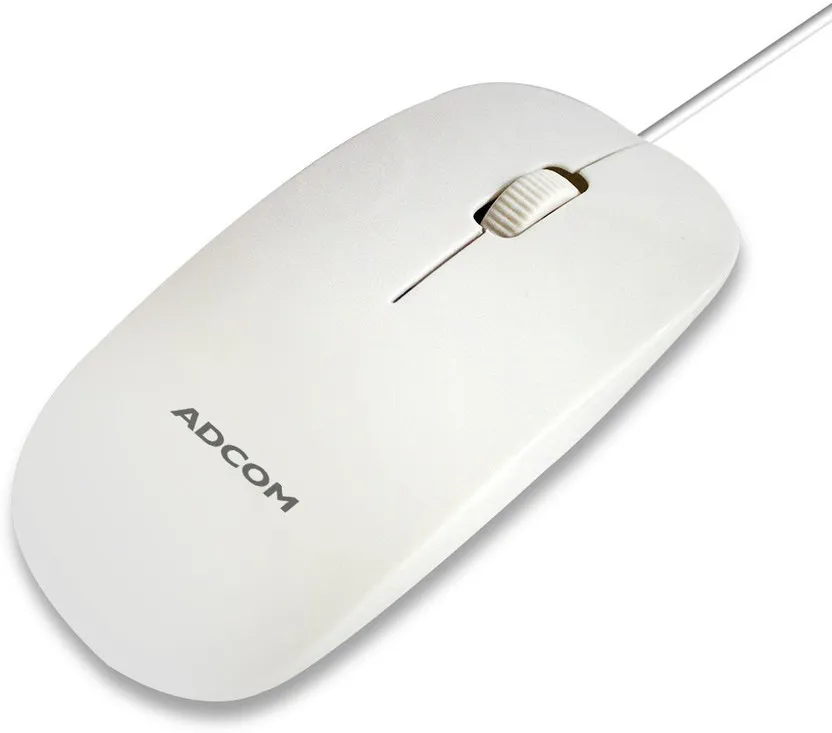
What is a Mouse Driver
A mouse driver is a specific type of software that acts as a translator between your computer’s operating system and your mouse. It’s essentially a set of instructions that allow your computer to understand the signals sent by your mouse, such as movement, clicks, and scroll wheel actions. Without the correct mouse driver, your computer wouldn’t be able to recognize your mouse, and it would be rendered useless. Think of it as the language your computer needs to speak to interact with your mouse. Drivers are typically provided by the mouse manufacturer and are designed to work with specific models and operating systems. They enable all the features of your mouse, from basic functions to advanced customization options. The driver also handles communication protocols, ensuring data transfer between the mouse and the computer is accurate and efficient. In essence, the mouse driver is an essential component for enabling your mouse to function correctly.
Why Mouse Drivers Are Important
Mouse drivers play a crucial role in ensuring the smooth and efficient operation of your mouse, enabling you to fully leverage its capabilities. Without the proper drivers, you might experience various issues, from basic functionality problems, like the mouse not moving, to advanced feature limitations. Drivers are also vital for optimal performance. They allow your mouse to send and receive information at the correct speeds, minimizing lag and maximizing responsiveness. For gaming mice, drivers are especially important, as they enable the configuration of macros, DPI settings, and other advanced features that can significantly enhance gameplay. Regular driver updates are also recommended, as they often include bug fixes, performance improvements, and compatibility enhancements for new operating systems. Maintaining up-to-date drivers ensures that your mouse functions at its best, providing a seamless and enhanced user experience, regardless of the task.
Common Mouse Driver Issues

Several issues can arise due to problems with your mouse driver. One of the most common is a malfunctioning mouse, where the cursor doesn’t move or behaves erratically. This can be caused by corrupted driver files or an outdated driver version. Another common issue is the loss of advanced functionality. Without the proper driver, you may be unable to customize buttons, adjust DPI settings, or use other special features of your mouse. Conflicts with other software or hardware can also lead to driver issues, resulting in crashes or system instability. Sometimes, the wrong driver might be installed, leading to compatibility problems and the mouse not working properly. Furthermore, outdated drivers can cause performance bottlenecks and reduce responsiveness. These issues can be frustrating and significantly impact your user experience, making it essential to diagnose and resolve driver problems promptly. Troubleshooting these issues often involves updating the driver, reinstalling it, or checking for conflicts with other software or hardware.
Downloading the Correct Mouse Driver
Downloading the correct mouse driver is the first and most crucial step to ensure proper mouse functionality. The wrong driver can cause a variety of issues, ranging from basic functionality problems to complete mouse failure. You need to identify your mouse model and operating system to get the right driver. This usually involves checking the mouse itself for a model number or consulting the documentation that came with it. After determining your mouse model, you can proceed to download the driver. It’s essential to get the driver from a reliable source to avoid malware and ensure compatibility. The manufacturer’s official website is the best and safest place to find the drivers. You can search the website for your mouse model and then download the appropriate driver version for your operating system. Always make sure you’re downloading the correct version for your Windows or macOS to avoid compatibility problems.
Identifying Your Mouse Model
Identifying your mouse model is a critical step in the driver installation process, as it ensures you download the correct driver. Most mice have a model number printed on the device itself. This number can typically be found on the underside, often near the product label or serial number. Some mice may have the model number printed on the top or sides. If you can’t find the model number on the mouse, you can also check the original packaging or the user manual. The packaging often includes the model name and number. If you have the receipt, it might also list the model. If you are still unsure, you can also look in your system’s hardware information. In Windows, you can access the Device Manager and look for the mouse listing. In macOS, you can often find the mouse model listed in the System Information section. Correct identification of the mouse model is the key to finding and installing the right driver.
Finding Drivers on the Manufacturer’s Website

Once you have identified your mouse model, the next step is to find the drivers on the manufacturer’s website. This is the most reliable source for obtaining the correct and up-to-date drivers for your mouse. Visit the official website of the mouse manufacturer; for example, Logitech, Razer, or Corsair. Navigate to the support or download section of the website. There, you will usually find a search bar or a list of products. Use the search bar to enter your mouse model or browse the product categories to find your mouse. Once you find your mouse model, the website should provide a list of available drivers for different operating systems like Windows or macOS. Make sure you select the driver that is compatible with your operating system version to avoid installation issues. After selecting the correct driver, click the download button to begin the download process. Ensure the file is downloaded from the official website to prevent any security risks or malware.
Installing the Mouse Driver
After downloading the appropriate driver, the next step is to install it on your computer. This process can be straightforward, but it’s important to follow the instructions carefully to ensure a successful installation. Before you begin, make sure you have administrative privileges on your computer, as driver installation often requires them. Locate the downloaded driver file, which is typically an executable file with an .exe extension. Double-click the file to start the installation process. The installation wizard will guide you through the steps. In some cases, you may need to restart your computer after installation for the changes to take effect. Make sure you follow the on-screen prompts carefully to avoid any errors. If you encounter any issues during installation, refer to the manufacturer’s documentation or support resources. Proper installation is critical for your mouse’s optimal function.
Step-by-Step Installation Guide
Installing a mouse driver typically involves a series of straightforward steps. Begin by locating the downloaded driver file on your computer. Double-click the file to launch the installation wizard. The first screen of the wizard usually displays a welcome message and may ask you to agree to the license terms. Read the terms and conditions carefully and then accept them to proceed. The wizard will then ask you to select the installation location. You can usually leave the default location, but you can change it if you prefer. After selecting the installation location, the wizard will start installing the driver files. This process may take a few minutes. Once the installation is complete, the wizard will display a confirmation message. You may be prompted to restart your computer to ensure the changes take effect. Restart your computer and test your mouse to ensure the driver has been installed correctly.
Running the Setup File

Running the setup file is a crucial step in installing your mouse driver. After downloading the driver from the manufacturer’s website, locate the executable file, typically with an .exe extension. Double-clicking this file initiates the installation process. Before running the setup file, make sure you close any programs that might interfere with the installation, such as other applications or games. The setup file will then launch an installation wizard, guiding you through the installation steps. The wizard typically includes prompts for you to review and accept the license agreement, choose an installation directory, and configure other settings specific to your mouse. Follow the on-screen instructions carefully, and be patient as the installation progresses. Once the setup is complete, you might be asked to restart your computer. It’s important to restart your computer to ensure that the new driver is fully integrated into your system.
Following On-Screen Instructions
When installing a mouse driver, it’s essential to follow the on-screen instructions provided by the setup wizard. These instructions guide you through each step of the installation process, ensuring that the driver is installed correctly. The instructions will typically include information on accepting the license agreement, selecting an installation location, and configuring any necessary settings for your mouse. Pay close attention to any prompts or warnings that appear during the installation. The wizard may also provide options for customizing the driver installation. For example, it might ask whether you want to install any additional software or utilities. Carefully review these options and make choices that align with your preferences and needs. Once the installation is complete, the wizard might prompt you to restart your computer. Always follow this prompt, as restarting is often necessary to apply the new driver settings and ensure your mouse functions correctly.
Troubleshooting Driver Installation
Troubleshooting a mouse driver installation can be a frustrating but necessary process when issues arise. If you encounter problems during installation, such as errors or the mouse not functioning after installation, there are several steps you can take. First, ensure that you have downloaded the correct driver for your mouse model and operating system. Double-check the manufacturer’s website for compatibility information. Try running the installation file as an administrator. Sometimes, certain permissions are required for successful installation. Temporarily disable any antivirus software or firewalls, as they might be interfering with the installation process. If the installation fails, try uninstalling any previous drivers before reinstalling the new one. You can usually uninstall drivers through the Device Manager. If the installation still doesn’t work, try restarting your computer in safe mode and then reinstalling the driver. If all else fails, consult the manufacturer’s support resources or contact their customer service for assistance.
Driver Installation Fails

When a mouse driver installation fails, it can manifest in several ways, such as an error message appearing during the installation process, the mouse not functioning correctly, or the system experiencing instability. There are several reasons why the installation might fail. First, the downloaded driver might be corrupted or incompatible with your operating system. Double-check that you’ve downloaded the correct driver version from a trusted source. Incomplete or corrupted downloads can also cause installation issues. Make sure the download completed successfully and try downloading the driver again if necessary. Conflicts with existing drivers or hardware can also lead to installation failures. If you suspect a conflict, try uninstalling the existing driver before attempting to install the new one. Another common cause is a lack of administrative privileges. Ensure that you are logged in as an administrator or that you run the installation file with administrative rights. If the installation continues to fail, consider contacting the manufacturer’s support for further assistance.
Device Not Recognized
If your computer fails to recognize your mouse, it can be a frustrating problem that prevents you from using your device. When the device is not recognized, it means the operating system does not detect the mouse. Start by ensuring that the mouse is properly connected to your computer. For a wired mouse, check that the USB cable is securely plugged in. For a wireless mouse, make sure the USB receiver is plugged in and that the mouse is turned on and connected. Another solution is to try a different USB port to see if the issue is with the port itself. Sometimes, a faulty USB port can prevent devices from being recognized. If your mouse still isn’t recognized, open Device Manager and check if your mouse is listed. If it has a yellow exclamation mark, it indicates a driver issue. Try updating or reinstalling the mouse driver. If all else fails, the issue may be with the mouse hardware. Try the mouse on another computer to determine if it’s a hardware problem.
Updating Your Mouse Driver
Keeping your mouse driver up-to-date is essential for ensuring optimal performance, compatibility, and security. Driver updates often include bug fixes, performance enhancements, and support for new features or operating system versions. There are two primary methods for updating your mouse driver: using Device Manager and using the manufacturer’s software. Device Manager is a built-in Windows tool that allows you to manage hardware devices and their drivers. With the Device Manager, you can check for driver updates automatically. On the other hand, many mouse manufacturers provide dedicated software that simplifies the driver update process. This software often includes additional customization options and features. Regularly checking for driver updates, regardless of the method you choose, is a good practice to maintain a smooth and efficient user experience.
Checking for Driver Updates

Regularly checking for driver updates is a proactive way to ensure your mouse functions at its best. Windows provides a built-in tool called Device Manager, which allows you to check for driver updates directly. To use Device Manager, right-click on the Start menu and select Device Manager. In the Device Manager window, expand the ‘Mice and other pointing devices’ category, right-click on your mouse, and select ‘Update driver’. Windows will then search for updated drivers online and install them automatically if found. It’s also a good practice to visit the manufacturer’s website periodically to check for driver updates. The website often has the latest drivers available for download. Download and install these drivers manually to ensure you have the most current version. Enabling automatic driver updates in your operating system settings can also help to keep your drivers up-to-date. These automatic updates will download and install new drivers as soon as they are available, which helps ensure your mouse operates smoothly.
Using Device Manager
Device Manager is a powerful tool in Windows that allows you to manage the hardware devices connected to your computer, including your mouse. It provides a user-friendly interface for viewing device status, updating drivers, and troubleshooting hardware issues. To access Device Manager, you can right-click on the Start button and select ‘Device Manager’ from the menu. Once in Device Manager, you can expand the ‘Mice and other pointing devices’ category to see your connected mouse. If there are any issues with the mouse driver, such as outdated drivers or driver conflicts, you’ll typically see a yellow exclamation mark next to the mouse entry. To update the mouse driver using Device Manager, right-click on your mouse and select ‘Update driver’. Then, select ‘Search automatically for drivers’ to let Windows search for updated drivers online. Device Manager also allows you to roll back to previous driver versions if the latest update causes problems. Using Device Manager gives you control over your mouse driver and helps keep your mouse working correctly.
Using Manufacturer’s Software
Many mouse manufacturers offer dedicated software that can simplify the process of updating your mouse driver and provide additional customization options. This software typically provides a user-friendly interface to manage driver updates, often allowing you to update the driver with a few clicks. The software usually comes with features like profile management, button customization, and DPI adjustment. Using the manufacturer’s software is often the most efficient way to ensure that you have the latest driver version and access all the available features. The software will often check for updates automatically or provide a notification when an update is available. Following the prompts within the software to update your driver is typically straightforward. In addition to driver updates, the software may also provide firmware updates for your mouse, which can improve performance and add new functionality. It’s recommended to download and install the manufacturer’s software for your mouse model to take advantage of these features.
Conclusion

Understanding and managing your mouse driver is a crucial aspect of maintaining a smooth and functional computing experience. From knowing what a mouse driver is to understanding the importance of regular updates and troubleshooting issues, this guide has provided a comprehensive overview of this essential software component. Proper driver installation, whether through the manufacturer’s software or Windows’ Device Manager, is vital for ensuring your mouse functions correctly and allows you to take full advantage of its features. Regularly checking for driver updates, addressing any installation failures, and troubleshooting device recognition problems are all key steps in maintaining a well-functioning mouse. By following the guidelines and tips in this article, you can ensure your mouse operates at its best and enhances your overall computing experience. Remember that drivers are regularly updated to fix bugs, improve performance, and add support for new hardware and software features. Always stay informed, update your drivers as needed, and enjoy a seamless and efficient mouse experience.